
Kingswood Village
Property Owners Association


Mobile Wallet Integration
We're excited to be able to provide a first for Kingswood Village - use your mobile phone as an access key to access the Pool, Gym, and Sports Court!*
*Requires subscription; ApplePay® / Google Wallet®
Requirements
To use this service, users must meet the following criteria:
Hardware:
Mobile Device with iOS or Android with a version capable of adding passes to ApplePay or Google Wallet
Association:
Users must be in good-standing with KVPOA
Subscription Information

Both Apple® and Google® charge our provider, UniFi, a usage fee to be able to use passes with their wallet systems.
To facilitate the management and payment processing, we've partnered with PayPal
Each device = 1 user
To cover both PayPal transaction fees as well as any and all processing fees, the current* cost is:
$10/user/year
*cost is subject to change to accomodate service provider pricing changes, fee changes, or other administrative costs
How it Works
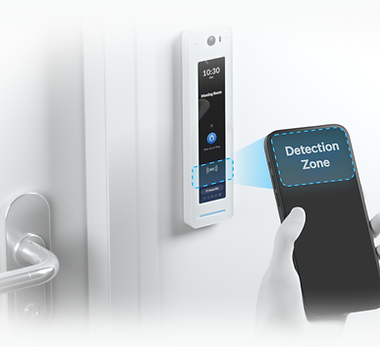
Once you're set up, you only need to take your phone out and tap it against the reader to unlock!
The Pass will remain in your mobile wallet similarly to a bus pass or airline ticket.
Limitations

Limitations:
Only one device per subscription
Must be owner and/or given written permission by owner
No returns or prorated refunds
You're in Control

No longer need it?
You are in total control! Users are able to cancel their subscription at any time!
Please note that subscription cancellation will not issue a prorated refund - service will continue to be active until the subscription end date.
All payments are final.
Getting Started with Your UniFi Mobile Wallet Access Card
Welcome to the simple process of setting up your UniFi Mobile Wallet Access Card! Just follow these easy steps to get started:
Step 1: Pay the Yearly Service Fee
The first step is to pay the yearly service fee of $10. This fee covers the costs imposed on KVPOA for providing this service. We use PayPal for secure online payments. You don't need a PayPal account; you can easily pay using a credit or debit card as a guest.
Click the "PayPal Subscribe" button below to make your payment.
Step 2: Fill Out and Submit the Service Form
After you successfully complete your payment, PayPal will provide you with a digital document (or a link to one). This document is very important. It will include:
-
Terms and Conditions: Please read and understand these.
-
Your Contact Information: It is super important that you carefully type your email address here. This is how we will send your mobile access card.
You have two choices for returning this document to us:
-
Email: You can fill it out on your computer and email it to the KVPOA office at [insert KVPOA email address].
-
Print and Drop Off: If you prefer, you can print the document, fill it out by hand, and drop it off at the KVPOA office during business hours (8am-4pm M-F).
Step 3: Complete the Onboarding Process
Once the KVPOA office receives and reviews your completed form and payment, we will begin the onboarding process.
Now, please follow the detailed Instruction Guide linked below. This guide will walk you through the final simple steps to add the UniFi Access Card to your smartphone's mobile wallet (like Apple Wallet or Google Pay).
Need Help?
If you have any questions or need a helping hand at any step, please don't hesitate to contact the KVPOA office. We're here to help you get connected!